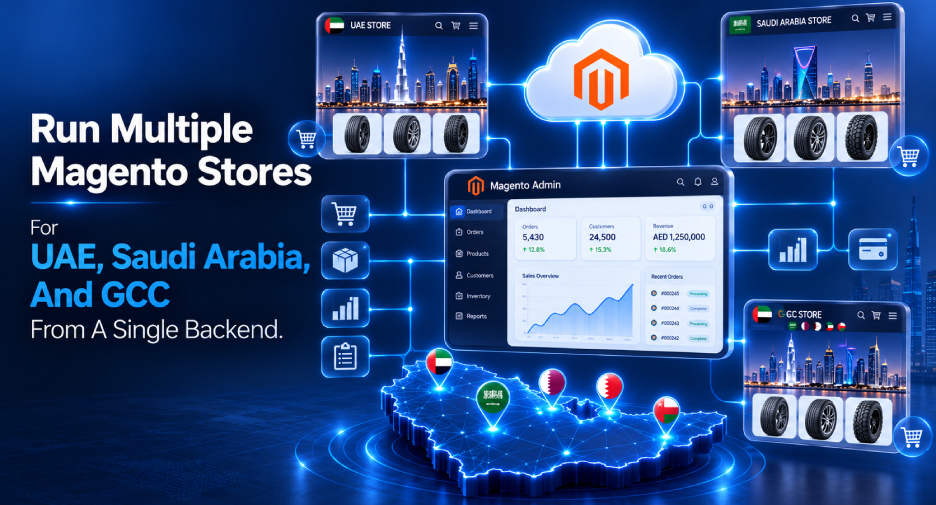


How To Run Multiple Magento Stores For UAE, Saudi Arabia, And GCC From A Single Backend
Posted on: 27 Jul, 2026
How To Run Multiple Magento Stores From A Single Backend
You must configure Magento’s multi-store hierarchy in the admin panel and map the stores on your web server to run multiple Magento stores from a single backend.
E-commerce is growing fast across the GCC, and businesses expanding into the UAE and Saudi Arabia face a common problem: running a separate store for each market is complex and time-consuming. Magento's multi-store capability solves this by letting you manage every store from a single backend.
This guide walks you through the full setup, from admin configuration to localizing each store, whether it's available as Magento Open Source or Adobe Commerce.
What Is Magento Multistore Functionality
Magento Multistore is a feature within the Magento e-commerce platform that lets you manage multiple online stores from a single backend. When you create multiple stores in Magento, they will remain on the same domain but have different URLs and function like subdomains.
How To Setup Multiple Magento Stores For UAE, Saudi Arabia, And GCC
There are seven easy steps you must follow to set up a Magento store development service. Let’s understand each in detail.
Step 1: Create A New Magento Website
- Log in to your Magento admin account
- Go to the “stores” on the dashboard on the left screen
- Select “all stores”
- Click “Create Website” for Magento ecommerce website development
- Enter details, including website name, a unique website code, and a number to set display chronology
- Click “save website”
Step 2: Create New Stores
- Return to the “all stores” page.
- Click “create store”
- Enter the required information: select the store website (choose the main website if you only have one), enter the store name, set a unique code, and select a root category.
- Click “save store”
Step 3: Create Store Views
- Return to the “all stores” page.
- Click “create store view”
- Fill the sections - choose the store, enter the store view name, enter a unique code, set to enabled, and assign an order to view the store.
- Click “save store view”
Step 4: Create a Custom URL for Each Store
- Return to the "Stores" section on the dashboard.
- Select "Configuration".
- Choose the website from the "Scope" dropdown in the upper-left corner.
- Click "Web" under the "General" dropdown on the left of the screen.
- Expand the "Base URLs" section.
- Untick the "Use Default" checkboxes next to "Base URL" and "Base Link URL".
- Enter your store's URL in both fields.
- Expand the "Base URLs (Secure)" section and repeat the same process with the https:// version of the URL.
- Click "Save Config".
Step 5: Add The Store Code To The Base Website URL
- Return to “configuration”
- Set the “scope” to the default config.
- Click “web” under the “general” drop-down on the left.
- Expand the “URL options” section.
- Uncheck “use system value” next to “add store code to URLs”
- Set the value for “add store code to URLs” to Yes.
- Click “ save config”
Step 6: Update the Default Store View for the Base URL
- Return to "Configuration".
- Set the "Scope" to Default Config.
- Click "Web" under the "General" dropdown on the left.
- Expand the "Base URLs" section.
- Untick the "Use system value" checkboxes next to "Base URL" and "Base Link URL".
- Enter your website's main base URL in both fields.
- Expand the "Base URLs (Secure)" section and repeat the same process.
- Click "Save Config".
Step 7: Clear Magento Cache
- Go to the “system section” on the dashboard.
- Select “cache management”
- Click the “flush Magento cache" button and wait until the process is complete.
Step 8: Point Your Domains to Magento
Creating the stores in the admin panel is only half the setup. Your web server also needs to know which store to load when a visitor arrives on each domain.
- Point every domain or subdomain (for example, yourstore.ae and yourstore.sa) to the same Magento installation through your DNS and hosting panel.
- Tell Magento which store each domain belongs to by setting two variables per domain:
MAGE_RUN_TYPE(set to "website" or "store") andMAGE_RUN_CODE(the unique code you created in Steps 1–3). - Most managed Magento hosts let you set these in the hosting control panel; on your own server, they are added to the Apache or Nginx configuration.
- Install an SSL certificate for each domain so the secure base URLs from Step 4 work correctly.
Benefits Of Magento Multi Stores
Here are some benefits of using Magento ecommerce web development Dubai for setting up Magento multistores for your business:
1. Expand Your Business
This feature can help you expand your business by letting you create and manage multiple stores from a single backend. Magento simplifies store customization and can cater to specific linguistic, regional, and customer needs.
2. Manage Multiple Stores
It is simple to manage multiple stores across the UAE, Saudi Arabia, and the GCC with Magento multi-store. You can switch between stores for updates without separate logins, saving you time.
3. Improve Customer Experience
You can enhance your consumer's experience by offering personalized shopping across regions, with unique prices, products, and promotions tailored to their specific group.
4. Enhance SEO Potential
With Magento Multistore, you can have a unique URL for each store, which can further enhance your SEO. You can target different market segments and keywords, and optimize them for specific stores, making it easier for your consumers to find.
5. Cost-Effective Expansion
Managing multiple stores from a single backend will reduce the need for separate administrative and installation expenses. Thus, it saves you money on maintenance, hosting, and staffing, making it a cost-effective expansion option.
Conclusion
Expanding into the UAE, Saudi Arabia and the wider GCC does not require separate e-commerce platforms. With Magento's multistore functionality, you can run local stores for every market, all managed from a single backend.
Need help with the setup? Contact Klever.ae, a trusted Magento web development company UAE, and our team will handle everything from configuration to localisation.
Frequently Asked Questions
Multi Magento website development lets you create separate websites with different products, domains, and customer bases, all managed from a single Magento installation. With each store having its own items and settings, Magento multistore allows you to manage several stores from a single backend.
Yes, there is a built-in inventory management system that lets you track stock levels, streamline order fulfillment, and manage multiple warehouses.
Yes, Magento supports multiple languages, which makes it easier to offer regional languages. This helps enhance the customer experience across the GCC.
Yes, you can use multiple gateways and payment methods to suit your local customers' preferences.For example, you can include Apple Pay or Tabby for UAE and STC Pay or Mada for Saudi Arabia stores.
You can configure different SEO settings, including meta titles, descriptions, URLs, keywords, and sitemaps, for each store. This can help you rank better locally in different GCC markets.